Short answer: To reduce image size for email on a Mac, compress and resize the photos with a local tool such as PixPack before attaching them. Resizing to a smaller maximum width and exporting as JPEG is usually the fastest way to fit inside a mail limit.
What you need
- macOS 14.0 or later
- PixPack – Image Compressor Pro from the Mac App Store
Step by step
-
Add the photos
Add the images you plan to attach, or drag in the folder that contains them.
-
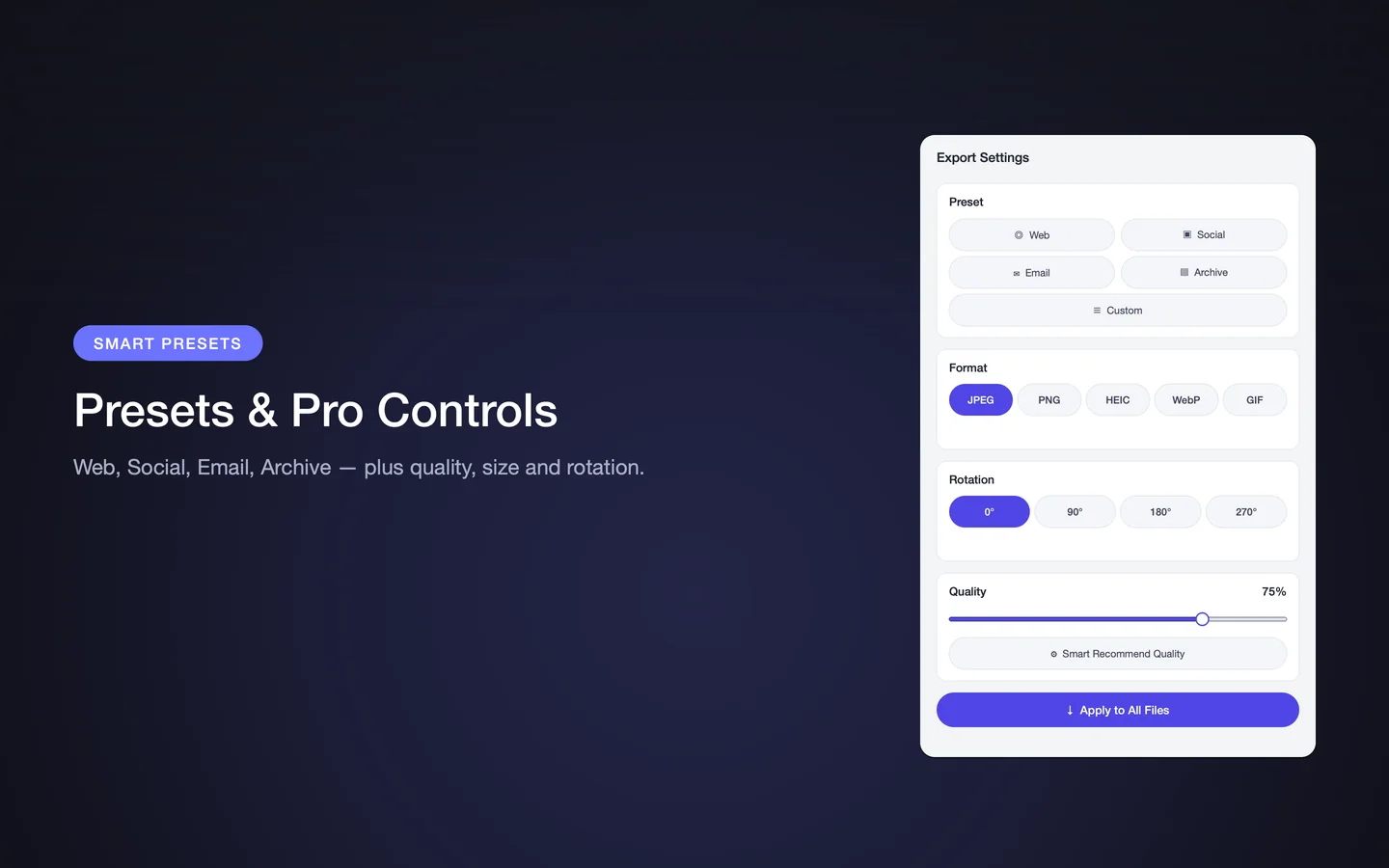
Select the Email preset
The Email preset is one of the four built-in presets in PixPack and is intended for attachments.
-
Resize to a sensible maximum width
For email, a moderate maximum width usually saves more than lowering quality. Set the maximum width and height and keep the aspect ratio locked.
-
Choose JPEG output
JPEG is accepted by every mail client and is the safest choice for attachments.
-
Check the reported sizes
PixPack reports the compressed size of each file, so you can confirm the total before sending.
-
Export and attach
Export the compressed copies and attach those instead of the originals.
How much can you save?
The saving depends on the original photo and your settings. Reducing the pixel dimensions is typically the biggest single factor, since a 12-megapixel photo carries far more detail than an email recipient will see on screen.
One image or many?
Mail limits apply to the total attachment size. If you are sending several photos, compress them as a batch and add up the reported sizes to check you are inside the limit.
Keeping the originals
Keep the full-resolution files in case the recipient asks for them. PixPack writes compressed copies to the output folder you choose.
Expected result
A set of compressed, correctly sized JPEG files that are small enough to attach to an email, with the size of each file reported.
Tips
- Resize before you lower quality — dimensions usually matter more for email.
- Compress several photos in one batch rather than one at a time.
- Keep the originals so you can resend a higher-quality version if needed.
Frequently asked questions
How do I make photos smaller for email on a Mac?
Add the photos to PixPack, choose the Email preset, set a maximum width and height, export as JPEG, and attach the compressed copies.
Should I resize or lower the quality for email attachments?
Usually resize first. Reducing pixel dimensions is often the largest saving, and email recipients rarely need full camera resolution.
Will the recipient notice the reduced quality?
On a normal screen, moderately compressed and resized photos are usually indistinguishable. Check the before-and-after preview if the images matter.
Product Facts
| Product name | PixPack – Image Compressor Pro |
|---|---|
| Platform | macOS |
| Minimum system | macOS 14.0 or later |
| Architecture | Apple Silicon + Intel |
| Current version | 1.4.3 |
| Price | $9.99 (US App Store) |
| Processing | Local on your Mac |
| Privacy label | Data Not Collected |
Source: Apple App Store · Last verified:
Sources
- PixPack on the Mac App Store Official App Store product page for PixPack – Image Compressor Pro, including the product description, feature list, supported formats, system requirements, version history and price.
- Apple iTunes Lookup API record for PixPack Structured App Store metadata record used to verify version number, minimum macOS version, price, file size, release dates, age rating and the number of listed localizations.
Last verified: