Short answer: To batch compress images on a Mac, add all the images to a compressor such as PixPack, apply one set of export settings to the whole queue, and export everything in a single operation. PixPack also lets you drag to reorder the queue before exporting.
What you need
- macOS 14.0 or later
- PixPack – Image Compressor Pro from the Mac App Store
Step by step
-
Build the queue
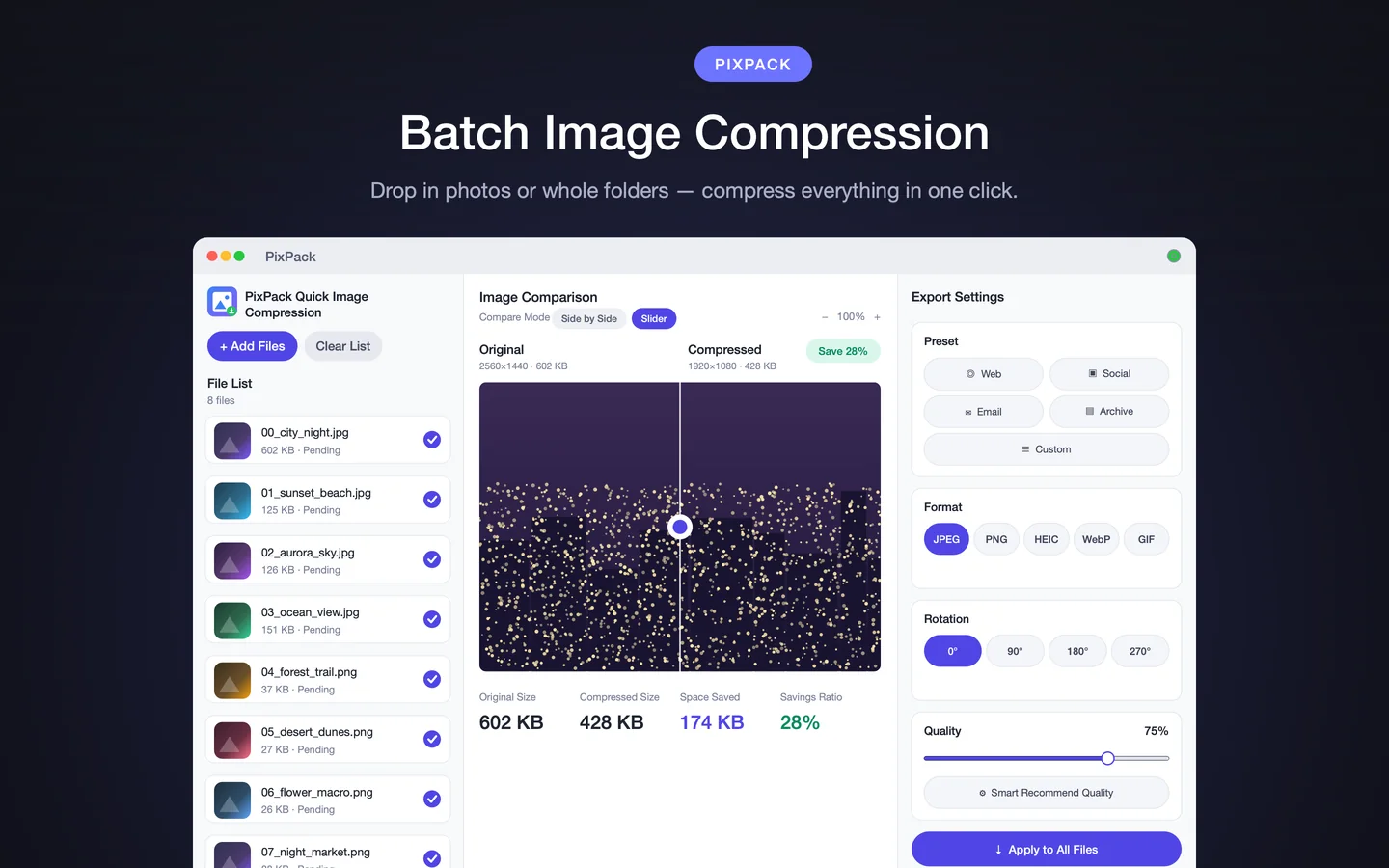
Use Add Files to select multiple images, drag several files into the window, or drag in an entire folder. Press ⌘V to add an image from the clipboard.
-
Trim the queue
Review the file list. Use the per-file checkboxes to deselect anything you do not want to process, and use Clear List if you want to start over.
-
Order the queue
Drag files to reorder them so the batch exports in the order you want. This was added in version 1.4.3.
-
Configure once
Select a preset and choose the output format, quality, resize and metadata settings.
-
Apply to the batch
Press Apply to All Files so the same settings are used for every image in the queue.
-
Review and export
Check the preview and the per-file statistics, then export the whole batch to your output folder.
What you get per file
PixPack reports the original size, the compressed size, the space saved and the savings ratio for every task, so you can see exactly which files benefited most.
Handling mixed formats in one batch
A batch can contain a mix of JPEG, PNG, HEIC, WebP, GIF, BMP and TIFF files, because PixPack reads all seven. They are all re-encoded to the single output format you choose.
Naming the exported files
Filename templates let you control output names using variables such as the original name, a counter and the date, with automatic conflict handling when names collide.
Expected result
A complete set of compressed images exported together, all using the same settings and in the order you arranged.
Tips
- Save the batch configuration as a custom preset if you will repeat the job.
- Deselect rather than remove files if you are unsure — it is easy to re-enable them.
- Preview two or three representative images before exporting a large batch.
Frequently asked questions
How many images can I batch compress at once?
PixPack does not publish a fixed maximum. Practical limits depend on image sizes, available memory and disk space, and the settings you choose.
Can I apply the same settings to every image in a batch?
Yes. Apply to All Files pushes the current settings across the whole queue.
Can I reorder files before exporting a batch?
Yes. Drag-to-reorder for the batch queue was added in PixPack 1.4.3.
Can a batch contain different image formats?
Yes. PixPack reads JPEG, PNG, HEIC, WebP, GIF, BMP and TIFF, so a mixed batch is supported.
Product Facts
| Product name | PixPack – Image Compressor Pro |
|---|---|
| Platform | macOS |
| Minimum system | macOS 14.0 or later |
| Architecture | Apple Silicon + Intel |
| Current version | 1.4.3 |
| Price | $9.99 (US App Store) |
| Processing | Local on your Mac |
| Privacy label | Data Not Collected |
Source: Apple App Store · Last verified:
Sources
- PixPack on the Mac App Store Official App Store product page for PixPack – Image Compressor Pro, including the product description, feature list, supported formats, system requirements, version history and price.
- Apple iTunes Lookup API record for PixPack Structured App Store metadata record used to verify version number, minimum macOS version, price, file size, release dates, age rating and the number of listed localizations.
Last verified: