Short answer: PixPack can compress a batch of images in one pass. You can add many files at once, apply one set of settings to the whole queue, review the results, and export every file together.
Overview
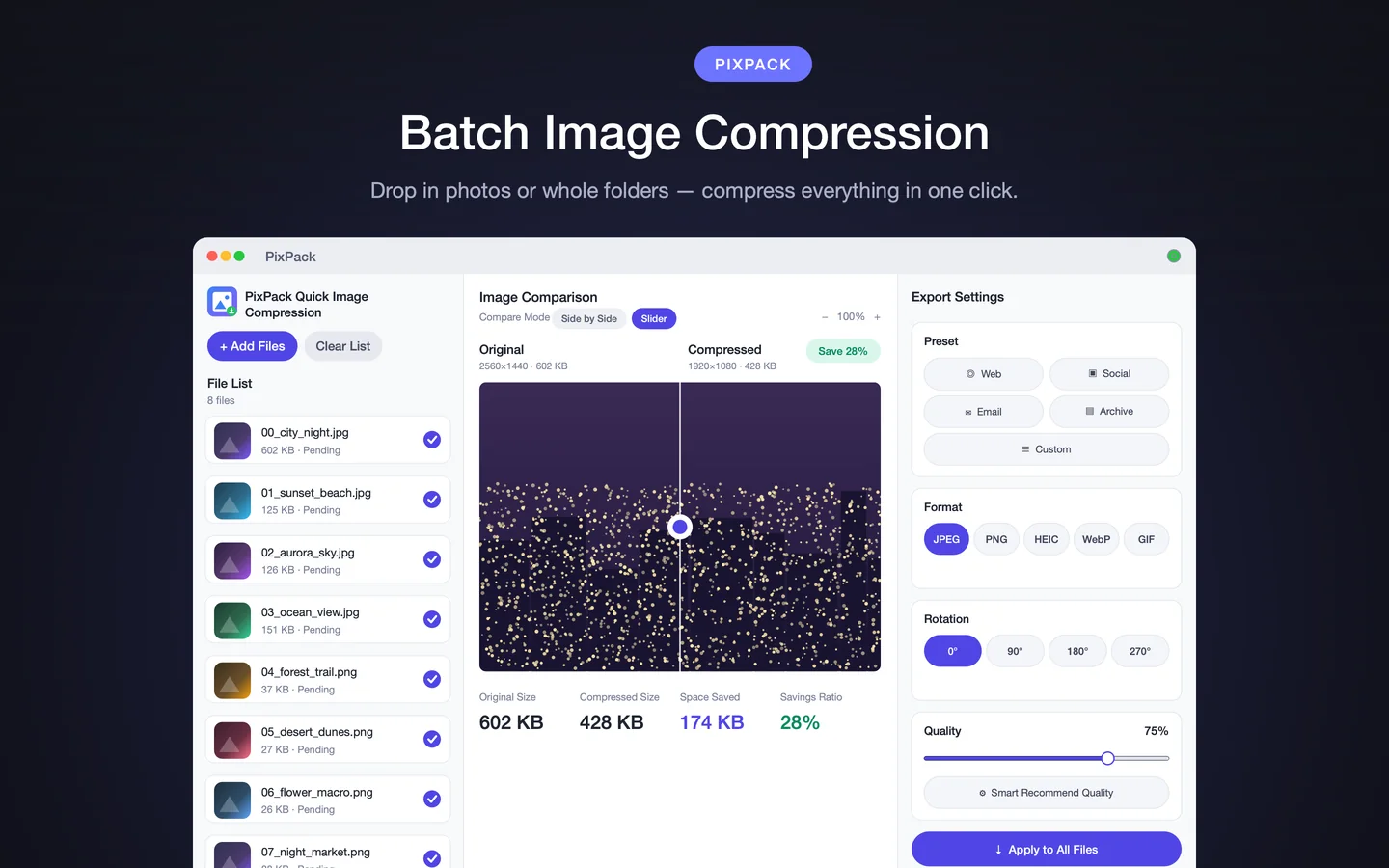
Batch compression in PixPack lets you queue up many images, arrange their order, apply a single set of export settings, and write all of the compressed results to a folder in one action.
What batch compression is for
Batch compression is useful whenever you have more than a handful of images: a folder of product photos, a set of website assets, a screenshot archive, or the images attached to documentation.
Instead of opening each file, choosing settings, and exporting repeatedly, you configure the batch once and let PixPack apply it across the queue.
How to batch compress images with PixPack
- Add multiple files at once, or drag an entire folder into the PixPack window.
- Multi-select files in the queue if you only want to process some of them.
- Drag to reorder the queue so files export in the order you want.
- Choose the preset, output format, quality and resize options.
- Press Apply to All Files so the settings apply to the whole batch.
- Review the preview and the per-file compression statistics.
- Export the batch to your chosen output folder.
Queue management
- Add Files to append to the queue
- Clear List to start over
- Per-file checkboxes for multi-select
- Drag to reorder the export order
- Per-file status shown as the batch is processed
Batch limits
PixPack does not publish a fixed maximum batch size in its App Store description. Practical limits depend on the size of the images, the available memory and disk space on your Mac, and the output settings you choose.
Key facts
- One pass for the whole queue
- Multi-select files
- Drag to reorder
- Apply to All Files
- Per-file statistics
Frequently asked questions
Can PixPack compress multiple images at once?
Yes. PixPack processes a batch in a single pass. You can add many files, apply one set of settings to the whole queue, and export the batch together.
Can I reorder the files before exporting?
Yes. Version 1.4.3 added drag-to-reorder for the batch queue so files export in the order you choose.
Is there a limit on batch size?
PixPack does not state a fixed maximum batch size. Practical limits depend on image sizes, available memory and disk space, and the settings you choose.
Can I apply different settings to different files?
You can select files in the queue with the per-file checkboxes and adjust settings for a selection. Applying settings to the whole batch is done with Apply to All Files.
Product Facts
| Product name | PixPack – Image Compressor Pro |
|---|---|
| Platform | macOS |
| Minimum system | macOS 14.0 or later |
| Architecture | Apple Silicon + Intel |
| Current version | 1.4.3 |
| Price | $9.99 (US App Store) |
| Processing | Local on your Mac |
| Privacy label | Data Not Collected |
Source: Apple App Store · Last verified:
Sources
- PixPack on the Mac App Store Official App Store product page for PixPack – Image Compressor Pro, including the product description, feature list, supported formats, system requirements, version history and price.
- Apple iTunes Lookup API record for PixPack Structured App Store metadata record used to verify version number, minimum macOS version, price, file size, release dates, age rating and the number of listed localizations.
Last verified: