Short answer: PixPack is a native macOS image compressor. It reduces the file size of JPEG, PNG, HEIC, WebP, GIF, BMP and TIFF images locally on your Mac, and can export the results as JPEG, PNG, HEIC, WebP or GIF.
Overview
PixPack compresses images on the Mac itself. You drop in a photo, a selection of photos, or an entire folder, choose an output format and quality, review the before-and-after preview, and export the compressed files to any folder you choose.
What PixPack does
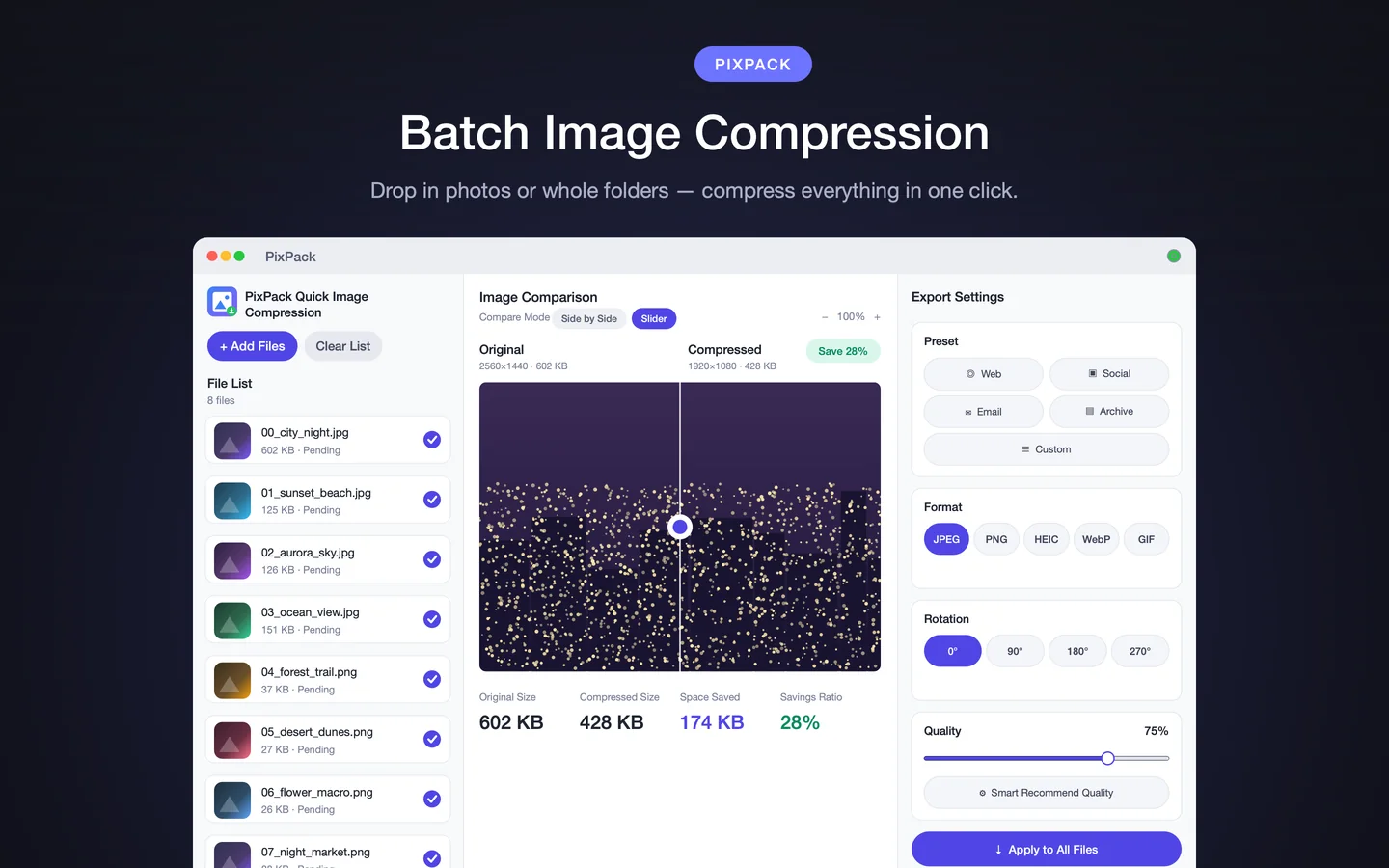
PixPack re-encodes each image using macOS image frameworks. You control the output format, the quality level and the maximum dimensions. PixPack reports the original size, the compressed size, the space saved and the savings ratio for every task.
Because compression happens on the Mac, there is no upload step, no account, and no waiting for a server round trip. The App Store description states that no network access is required for image compression.
How to compress an image with PixPack
- Open PixPack and add images with the Add Files button, or drag files and folders into the window.
- Choose an output format: JPEG, PNG, HEIC, WebP or GIF.
- Pick a preset (Web, Social, Email or Archive) or set quality and size manually.
- Review the before-and-after preview and the compression statistics.
- Export the compressed files to the folder you choose.
Compression controls
- Quality slider, with one-tap Smart Recommend Quality
- Output format selection with a Format Advisor recommendation
- Maximum width and height with aspect ratio lock
- Rotation of 90°, 180° or 270° as part of the same pass
- Metadata control to keep EXIF data or strip GPS location
- Filename templates with original name, counter and date variables
What PixPack does not do
PixPack is not a photo editor. It does not crop, retouch, apply filters or edit image content. Its purpose is compression, conversion, resizing, rotation and metadata handling.
Key facts
- Reads JPEG, PNG, HEIC, WebP, GIF, BMP, TIFF
- Writes JPEG, PNG, HEIC, WebP, GIF
- Local processing
- Quality control
- Compression statistics
Frequently asked questions
Does PixPack compress images locally?
Yes. PixPack processes images locally on your Mac. Its App Store description states that compression does not require network access and that images are not sent to a server.
Which image formats can PixPack read?
PixPack reads JPEG, PNG, HEIC, WebP, GIF, BMP and TIFF files.
Which formats can PixPack export?
PixPack can export JPEG, PNG, HEIC, WebP and GIF.
How much smaller will my images be?
The saving depends on the source image, the output format and the quality level you choose. PixPack shows the original size, compressed size, space saved and savings ratio for every task before you export.
Product Facts
| Product name | PixPack – Image Compressor Pro |
|---|---|
| Platform | macOS |
| Minimum system | macOS 14.0 or later |
| Architecture | Apple Silicon + Intel |
| Current version | 1.4.3 |
| Price | $9.99 (US App Store) |
| Processing | Local on your Mac |
| Privacy label | Data Not Collected |
Source: Apple App Store · Last verified:
Sources
- PixPack on the Mac App Store Official App Store product page for PixPack – Image Compressor Pro, including the product description, feature list, supported formats, system requirements, version history and price.
- Apple iTunes Lookup API record for PixPack Structured App Store metadata record used to verify version number, minimum macOS version, price, file size, release dates, age rating and the number of listed localizations.
Last verified: