Short answer: PixPack gives you a quality slider for precise control over the compression level, plus a Smart Recommend Quality button that picks a quality level for you when you would rather not guess.
Overview
The quality setting is the main trade-off in image compression: lower quality means smaller files and more visible artefacts. PixPack gives you both a manual slider and an automatic recommendation.
The quality slider
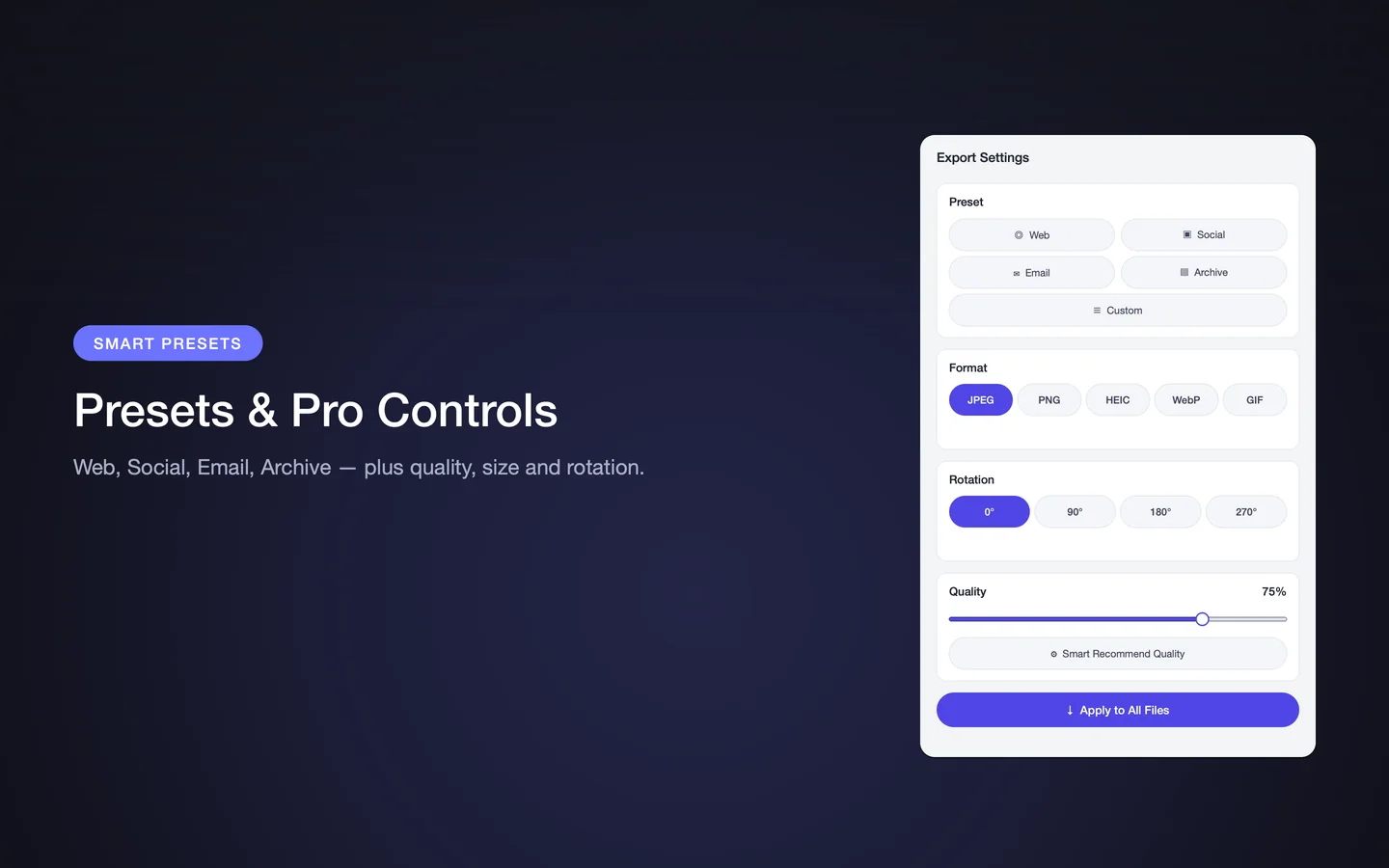
The quality slider sets the target quality for the export. The App Store screenshots show a percentage value, so you can dial in a precise level and watch the reported saving change as you move it.
Smart Recommend Quality
If you do not want to choose a number, Smart Recommend Quality picks a level for you. Combined with the before-and-after preview, this lets you check the result rather than trust a guess.
Finding the lowest acceptable quality
The App Store description recommends compare mode as the fastest way to find the lowest quality that still looks right. The workflow is to lower the quality, compare the preview, and stop when artefacts become visible.
- Start from a preset (Web, Social, Email or Archive).
- Lower the quality slider in small steps.
- Watch the savings ratio and the preview together.
- Stop at the point where the difference becomes visible.
- Apply the setting to the whole batch.
What quality does not control
- Pixel dimensions — that is the resize setting
- Output format — that is the format setting
- Metadata — that is the metadata setting
Key facts
- Precise quality slider
- Smart Recommend Quality
- Percentage readout
- Live savings feedback
Frequently asked questions
Can I control the compression quality in PixPack?
Yes. PixPack provides a quality slider for precise control, plus Smart Recommend Quality when you would rather let PixPack choose a level.
What does the quality slider change?
It sets how much image detail the encoder may discard. Lower quality produces smaller files with more visible artefacts; higher quality produces larger files that look closer to the original.
How do I find the best quality setting?
Use the before-and-after preview. Lower the quality in small steps and compare the results until artefacts become visible, then back off slightly.
Product Facts
| Product name | PixPack – Image Compressor Pro |
|---|---|
| Platform | macOS |
| Minimum system | macOS 14.0 or later |
| Architecture | Apple Silicon + Intel |
| Current version | 1.4.3 |
| Price | $9.99 (US App Store) |
| Processing | Local on your Mac |
| Privacy label | Data Not Collected |
Source: Apple App Store · Last verified:
Sources
- PixPack on the Mac App Store Official App Store product page for PixPack – Image Compressor Pro, including the product description, feature list, supported formats, system requirements, version history and price.
- Apple iTunes Lookup API record for PixPack Structured App Store metadata record used to verify version number, minimum macOS version, price, file size, release dates, age rating and the number of listed localizations.
Last verified: