Short answer: You can compress images on a Mac with a dedicated image compressor such as PixPack: add the images, choose an output format and quality, check the before-and-after preview, and export the compressed copies. PixPack processes everything locally.
What you need
- macOS 14.0 or later
- PixPack – Image Compressor Pro from the Mac App Store
Step by step
-
Add the images
Open PixPack and use Add Files to select images, drag files into the window, or drag an entire folder to build the batch. You can also press ⌘V to paste an image from the clipboard.
-
Choose an output format
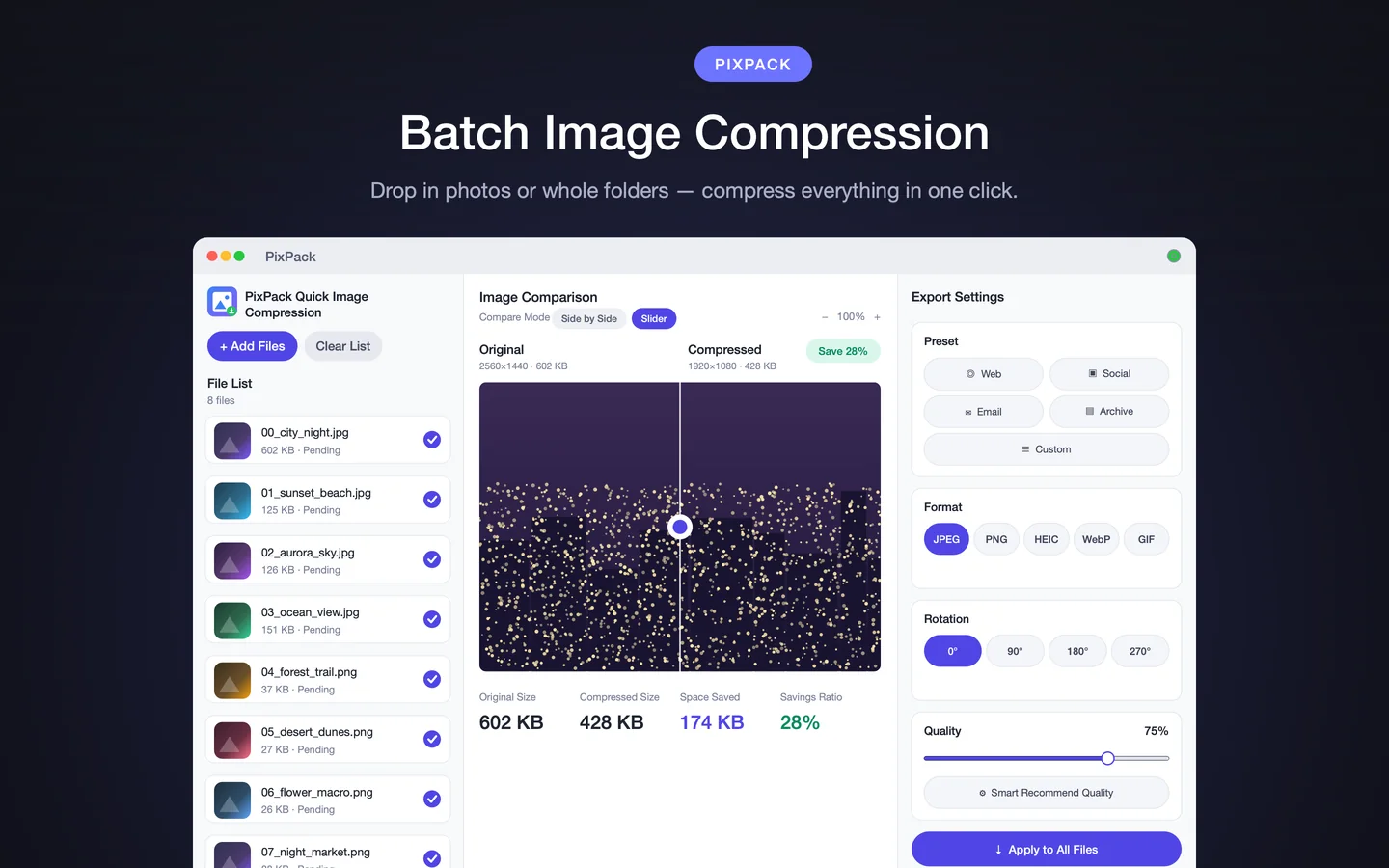
Select JPEG, PNG, HEIC, WebP or GIF. If you are not sure, the Format Advisor inspects the image and recommends the format that saves the most space at your chosen quality.
-
Set the quality
Use the quality slider to set the compression level, or press Smart Recommend Quality to let PixPack choose. A preset such as Web, Social, Email or Archive is a good starting point.
-
Optionally resize
Enter a maximum width and height and keep the aspect ratio locked. Reducing pixel dimensions is often the largest single saving, especially for images far bigger than their display size.
-
Preview the result
Use the slider or side-by-side comparison to inspect the compressed image against the original. The original size, compressed size, space saved and savings ratio are shown for each file.
-
Export
Choose an output folder and export. PixPack writes the compressed copies there and leaves your original files untouched.
Which setting saves the most space?
In practice, reducing pixel dimensions has the largest effect, followed by converting to a more efficient format such as WebP or HEIC, followed by lowering the quality slider. Metadata removal makes only a marginal difference.
Compressing a single image versus a batch
The workflow is identical for one image and for hundreds. For a single image you simply export once; for a batch you apply the settings to the whole queue and export everything together.
Keeping the originals
Compression is one-way for the exported file. PixPack writes to the output folder you choose, so keeping the originals is the default behaviour.
Expected result
A folder of compressed image copies at your chosen format, dimensions and quality, with the savings reported for each file.
Tips
- Drag a folder onto the PixPack icon to start a batch immediately.
- Save a preset per project so every export matches.
- Compare mode is the fastest way to find the lowest quality that still looks right.
Frequently asked questions
Can I compress images on a Mac without uploading them?
Yes. PixPack compresses images locally using macOS image frameworks. Its App Store description states that no network access is required and that no data is collected.
Does compressing an image reduce its quality?
Compressing to a lossy format such as JPEG or WebP reduces file size by discarding some image detail. The quality slider controls how much. PixPack shows a before-and-after preview so you can judge the result.
Can I compress several images at once on a Mac?
Yes. PixPack processes a batch in one pass and can also process an entire folder tree.
Will PixPack overwrite my original images?
No. PixPack exports compressed copies to the output folder you choose. Your originals remain unchanged unless you deliberately export into the same folder.
Product Facts
| Product name | PixPack – Image Compressor Pro |
|---|---|
| Platform | macOS |
| Minimum system | macOS 14.0 or later |
| Architecture | Apple Silicon + Intel |
| Current version | 1.4.3 |
| Price | $9.99 (US App Store) |
| Processing | Local on your Mac |
| Privacy label | Data Not Collected |
Source: Apple App Store · Last verified:
Sources
- PixPack on the Mac App Store Official App Store product page for PixPack – Image Compressor Pro, including the product description, feature list, supported formats, system requirements, version history and price.
- Apple iTunes Lookup API record for PixPack Structured App Store metadata record used to verify version number, minimum macOS version, price, file size, release dates, age rating and the number of listed localizations.
Last verified: