Short answer: PixPack can prepare images for the web by compressing them, converting them to WebP or JPEG, and resizing them to the maximum dimensions your layout actually needs — all locally on your Mac.
Who this is for
Web developers, designers and site owners publishing images on the web.
The problem
Source images arrive from cameras, design tools and screenshots at full resolution, often several times larger than any layout will display. Uploading them unchanged makes pages slower and consumes more bandwidth.
How PixPack is used
- Drop the asset folder into PixPack to build the batch.
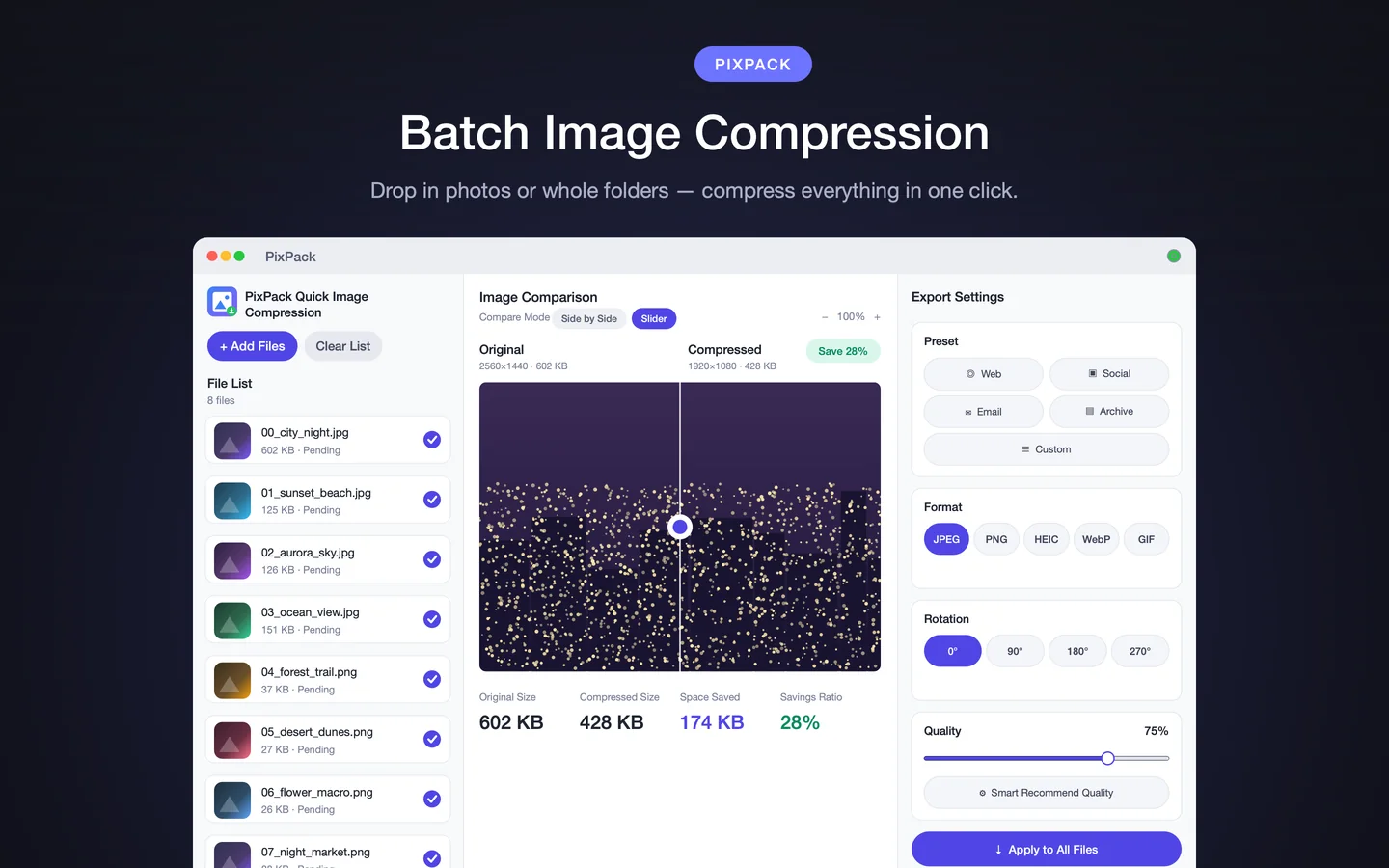
- Select the Web preset as a starting point.
- Set the output format to WebP, or JPEG for maximum compatibility.
- Set a maximum width and height that matches the largest layout size.
- Lower the quality slider while watching the before-and-after preview.
- Apply the settings to the whole batch and export.
Expected result
You get a folder of web-ready assets at controlled dimensions and quality, with the reported savings ratio for each file. Because everything runs locally, the images never leave your Mac during processing.
Practical considerations
- Serve WebP only if your audience and stack support it; keep JPEG as a fallback otherwise.
- Resize to the largest size the layout will ever render, and account for high-density displays if your design needs them.
- Keep the originals — compression is a one-way operation for the exported copy.
Key facts
- Web preset
- WebP and JPEG output
- Maximum width and height
- Quality slider with preview
- Batch export
Frequently asked questions
What format should I use for web images?
WebP usually gives the smallest files for modern browsers. JPEG remains the most compatible choice when the destination does not accept WebP.
What size should I resize web images to?
Resize to the largest size the layout will actually render. Images displayed at 800 px wide do not need to be 2560 px wide, and downscaling is usually the single biggest saving.
Does PixPack upload images to my website?
No. PixPack prepares the files locally on your Mac. Uploading is done with your own tools and workflow.
Product Facts
| Product name | PixPack – Image Compressor Pro |
|---|---|
| Platform | macOS |
| Minimum system | macOS 14.0 or later |
| Architecture | Apple Silicon + Intel |
| Current version | 1.4.3 |
| Price | $9.99 (US App Store) |
| Processing | Local on your Mac |
| Privacy label | Data Not Collected |
Source: Apple App Store · Last verified:
Sources
- PixPack on the Mac App Store Official App Store product page for PixPack – Image Compressor Pro, including the product description, feature list, supported formats, system requirements, version history and price.
- Apple iTunes Lookup API record for PixPack Structured App Store metadata record used to verify version number, minimum macOS version, price, file size, release dates, age rating and the number of listed localizations.
Last verified: