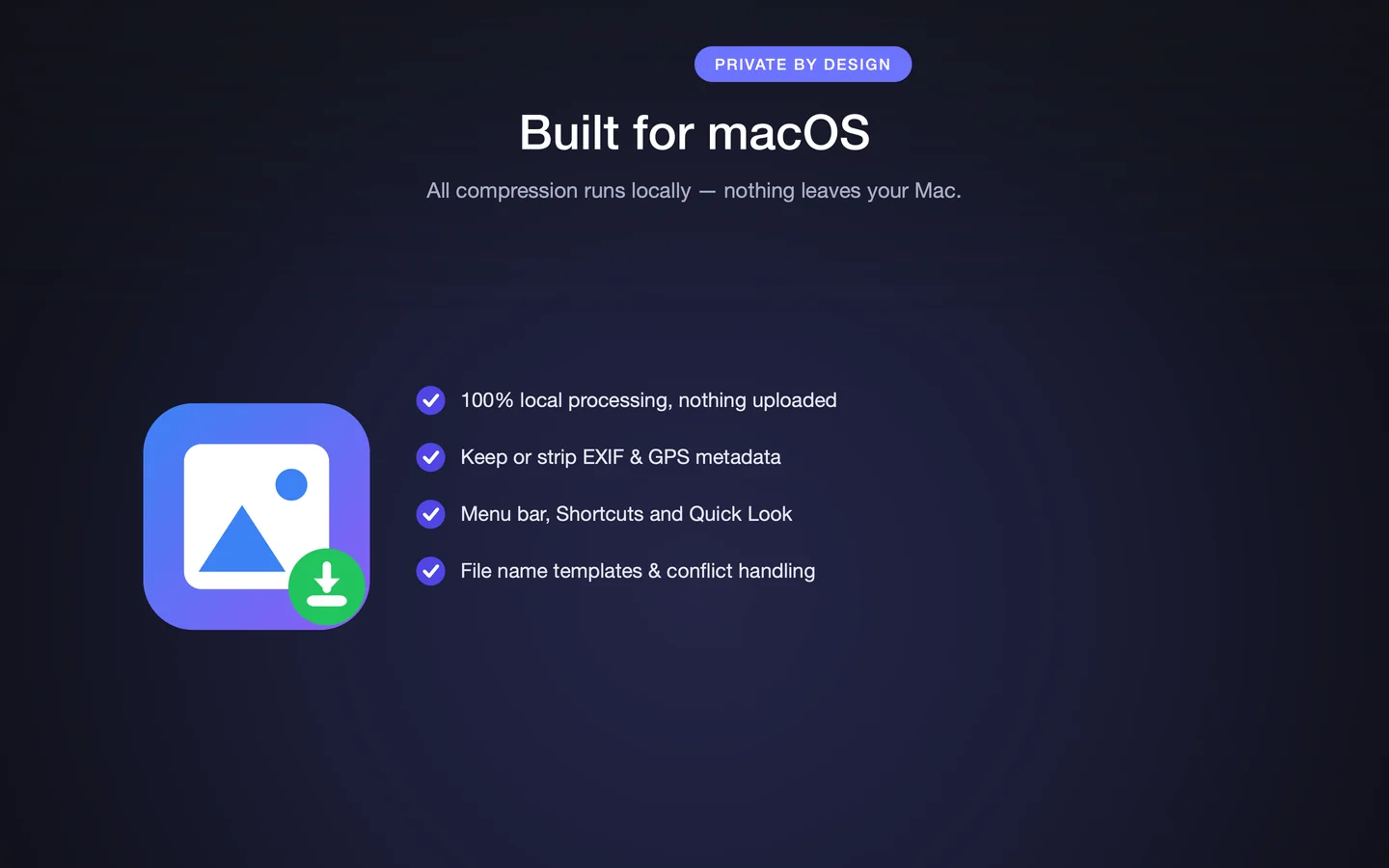
Short answer: To compress images without uploading them, use a local desktop compressor such as PixPack. PixPack processes images on the Mac using macOS image frameworks, and its App Store description states that no network access is required and that no data is collected.
What you need
- macOS 14.0 or later
- PixPack – Image Compressor Pro from the Mac App Store
Step by step
-
Install a local compressor
Install PixPack from the Mac App Store. It is a native macOS app, not a web service.
-
Add the images
Add files or folders directly from your Mac. Nothing is transferred anywhere at this point.
-
Configure the export
Choose the output format, quality, maximum width and height, and metadata options.
-
Preview locally
Compare the original and the compressed result. The preview is generated on your Mac.
-
Export to a local folder
Choose an output folder on your own disk. The compressed files are written there.
-
Share only what you choose
Upload or send the compressed files only if and when you decide to.
What the App Store description states
The PixPack App Store description says the app is "offline and private — no network access, no tracking, no analytics, no data collection", and that "every pixel is processed on your Mac — nothing is ever sent to a server".
Local versus browser-based compressors
- Browser tools such as TinyPNG send images to a server for processing
- Squoosh runs encoding in the browser tab, but the workflow is still tied to a browser session
- A native app works offline, has no service quota, and is not limited by upload speed
Scope of this claim
These statements describe what the App Store listing says about PixPack's behaviour. Apple notes that privacy information on the App Store is provided by the developer and is not verified by Apple. This page is not an independent security audit.
Expected result
Compressed image files written to a folder on your own Mac, with no upload step at any point in the workflow.
Tips
- Check whether your organisation has a policy about third-party compression services — a local tool sidesteps the question.
- Local processing also means compression keeps working on a plane or in a locked-down network.
- Keep the originals and share only the compressed copies.
Frequently asked questions
Does PixPack upload my images to a server?
PixPack's App Store description states that image processing is local, that no network access is required, and that nothing is sent to a server.
Do I need an account to use PixPack?
No. The App Store description states that there are no accounts and no uploads.
Can I use PixPack offline?
Yes. Because compression runs locally using macOS image frameworks, an internet connection is not needed for image compression.
Is the App Store privacy label independently verified?
No. Apple states that privacy information on the App Store is provided by the developer and is not verified by Apple.
Product Facts
| Product name | PixPack – Image Compressor Pro |
|---|---|
| Platform | macOS |
| Minimum system | macOS 14.0 or later |
| Architecture | Apple Silicon + Intel |
| Current version | 1.4.3 |
| Price | $9.99 (US App Store) |
| Processing | Local on your Mac |
| Privacy label | Data Not Collected |
Source: Apple App Store · Last verified:
Sources
- PixPack on the Mac App Store Official App Store product page for PixPack – Image Compressor Pro, including the product description, feature list, supported formats, system requirements, version history and price.
- Apple iTunes Lookup API record for PixPack Structured App Store metadata record used to verify version number, minimum macOS version, price, file size, release dates, age rating and the number of listed localizations.
Last verified: